John Bealle Sky Apps

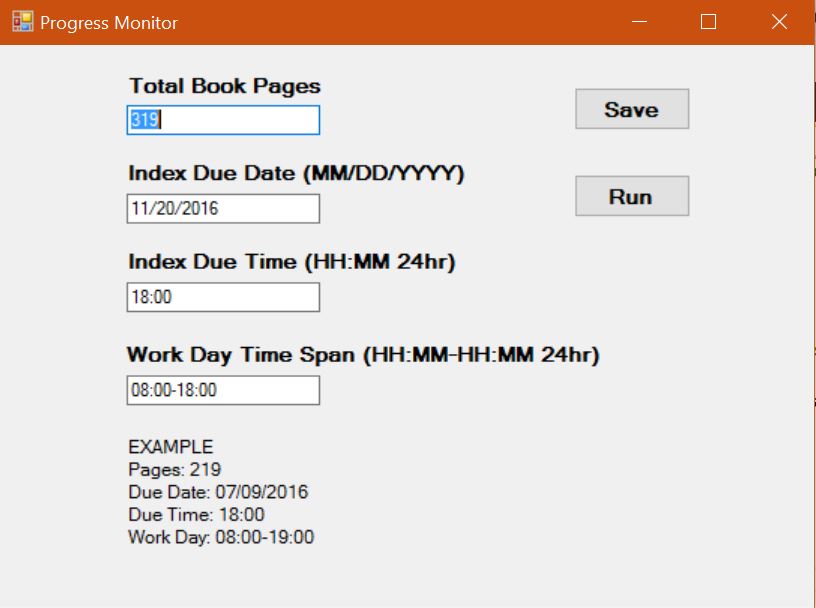
Progress Monitor Settings Dialog


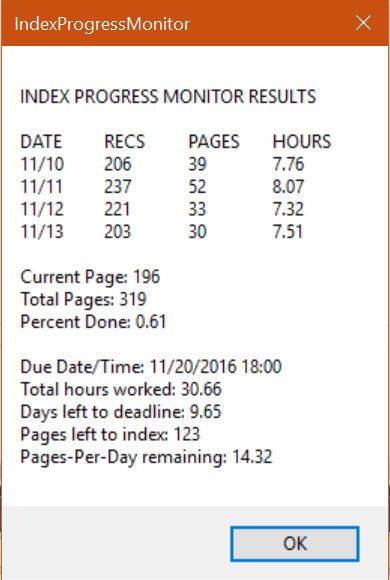
Progress Monitor Report Dialog

Project Progress Monitor

Requirements:
Menu assignment — Utilities menu
Keyboard assignment: — None

This program uses Sky record data to measure progress towards a deadline. It reports the number of records created and the number of pages indexed for each day on a project. Additionally, with user-supplied data for the total number of pages and index deadline, the program computes the pace (pages per day) needed to make the deadline.

To create a progress monitor report, run the program and fill in the project specs in the dialog. If you plan to monitor this project again, save the options so they will fill in the form automatically.

Note that the algorithm for determining the productivity (Pages Indexed) of a particular day can lead to inaccuracies. In order to measure productivity using only index entries, the program analyzes all the records entered with a particular date stamp. The program will try to identify and ignore outliers, for example, records added from earlier or later parts of the book. The strategy is to use only page numbers and date-time stamps to guess which records "count" towards the productivity of a particular day.

The Hours Worked is the accumulation of all timestamp spans for a particular day. If there is a wide gap between two spans, the program assumes a workflow gap for the same period. If however the span is short, the program assumes a normal delay in entering or editing entries.

Unlike Pages Indexed and and Hours Worked, the Records Indexed figure counts new records added on a particular day and is always correct.

With "Days To Go" and "Pages Per Day" (to finish), be aware that the result is a pure count of workdays needed to finish. There is no accounting for weekends or holidays. Also the program applies the active settings to the current open index and assumes only one Sky program instance is running.
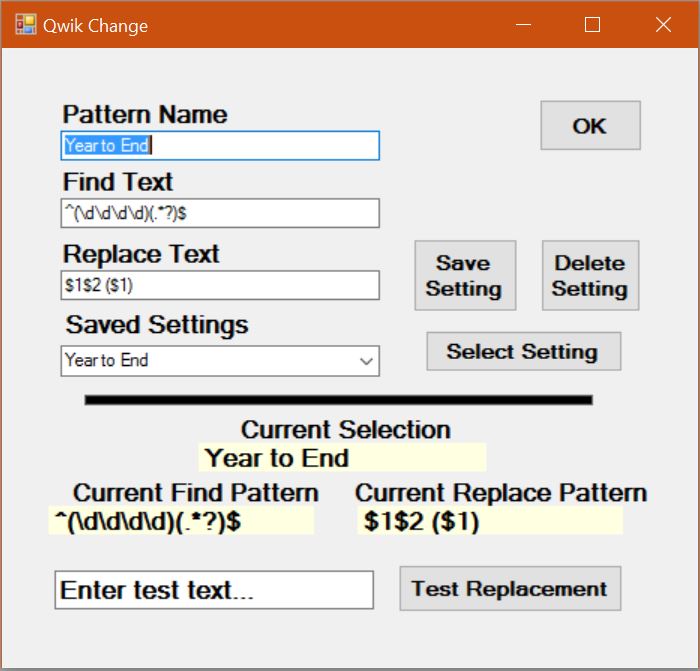
Qwik Change Settings Dialog

Qwik Change

Requirements:
Menu assignment (Qwik Change Settings) — Tools Menu
Menu assignment (Qwik Change) — Utilities Menu
Keyboard assignment (Qwik Change): — Alt-Ctrl-Y

Qwik Change is designed to make instant and silent changes to a single Sky data cell. It works much like Find and Replace, though without using a dialog. The purpose is to set up a repetitive operation that can be used quickly. Just use the Alt-Ctrl-Y shortcut and the text in the current cell will be changed according to the settings.

The program comes preloaded with an arsenal of handy operations:

  • Create Acronym. This preset will convert "Center for Science in the Public Interest" to "CSPI". It collects the sequence of uppercase letters that begin each word in the text.
  • Plate Number. This preset is designed to remove particular text before a number, as in converting "Plate 7" to "7". It is easily customizable by simply changing the "Plate" text in the preset.
  • Year to End. This preset aids in creating chronological entries by converting a leading date into hidden text and repeating the date in trailing parentheses. So a user could type "1999The Matrix" and use the app to convert the text to "1999The Matrix (1999)".
  • Year to Beginning. This preset will copy trailing parenthetical dates as in "The Matrix (1999)" and create leading hidden force-sort text such as "1999The Matrix (1999)"
  • Remove Hidden Sort. This preset will remove hidden sort text from the beginning of cell text. For example, "1999The Matrix (1999)" is stripped of its leading sort text to produce "The Matrix (1999)".
  • Italics to Quotes. This preset will remove italics from a title and replace it with quotes. So, The Matrix would become "The Matrix".
  • Quotes to Italics. This preset removes quotes from a title and replaces it with italics.
  • Name (Old Name). This preset will convert index text such as "Twain, Mark (Samuel Clemens)" to "Clemens, Samuel (Mark Twain)".

Using Qwik Change:

The top section of the settings dialog controls the collection of saved patterns. Patterns may be created, edited, saved, and deleted. The bottom section of the settings dialog is the currently selected pattern. Use the "Select Setting" button to choose a pattern—it will be selected and remembered as the current active pattern.

Limitations:

  • The app works only in View Mode on refreshed text. So to use Qwik Change on edited text, first use Alt-F11 to refresh and exit Edit Mode.
  • The settings dialog uses explicit Sky formatting codes, normally the provenance of advanced Sky users. Those unfamiliar with formatting codes may use the presets.

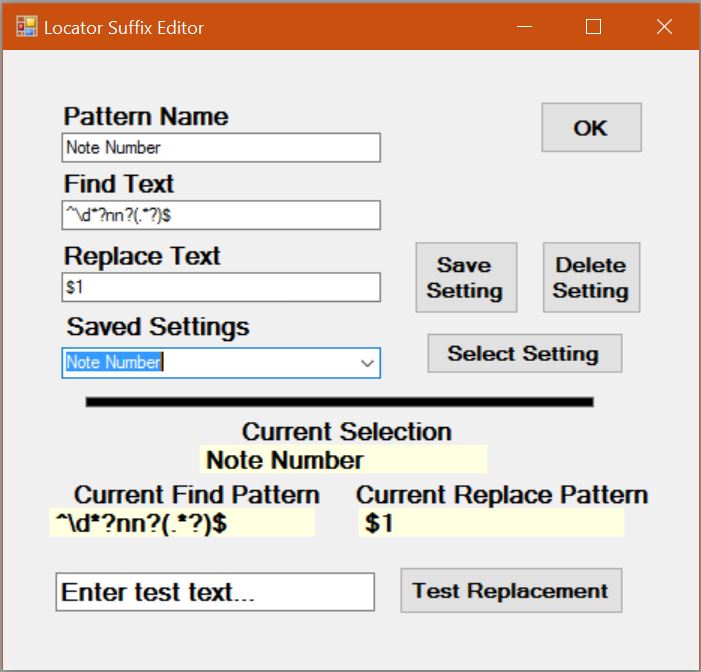
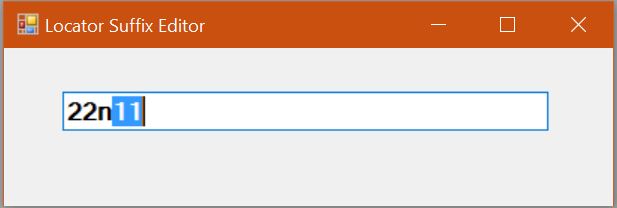
Locator Suffix Editor Dialog

Locator Suffix Editor Settings Dialog

Locator Suffix Editor

Requirements:
Menu assignment (Locator Suffix Settings) — Tools Menu
Menu assignment (Locator Suffix Editor) — Utilities Menu
Keyboard assignment (Locator Suffix Editor): — Alt-Ctrl-Z

The main purpose of Locator Suffix Editor is to facilitate the editing of note numbers of the form "22n11". Ordinarily the user navigates to the Page field, enters Edit Mode, backspaces over the "11" and changes this to "12" or some other incremented number. Locator Suffix Editor uses a single keystroke from any field to open a dialog that displays the current locator "22n11" with the "11" as selected text. You only need to type the new number "12" and hit Enter to edit the note number.

Although the most common use of the app will likely be for note numbers, it can be used to isolate and select most any part of a locator.

The program comes preloaded with several handy presets:

  • Note Number. Designed to edit footnote and endnote numbers, this preset will highlight numbers that follow "n" or "nn", for example, "111-112nn3-5
  • Plate Number. Designed to edit plate numbers, this preset will highlight numbers that follow the text "Plate", for example, "Plate 11"
  • Chapter. This preset is designed to edit the Chapter part of a Volume-Chapter-Page locator, such as, "II:13.121".

Using Locator Suffix Editor:

The top section of the settings dialog controls the collection of saved patterns. Patterns may be created, edited, saved, and deleted. The bottom section of the settings dialog is the currently selected pattern. Use the "Select Setting" button to choose a pattern—it will be selected and remembered as the current active pattern.

Limitations:

  • The app works only in View Mode on refreshed text. So to use Locator Suffix Editor on edited text, first use Alt-F11 to refresh and exit Edit Mode.
  • The settings dialog uses explicit Sky formatting codes, normally the provenance of advanced Sky users. Those unfamiliar with formatting codes may use the presets.

C:\Program Files (x86)\Common Files\SKY Software\Addins


Installing Sky Apps

The three Sky apps can be downloaded from this location: Download Here (zip file format)

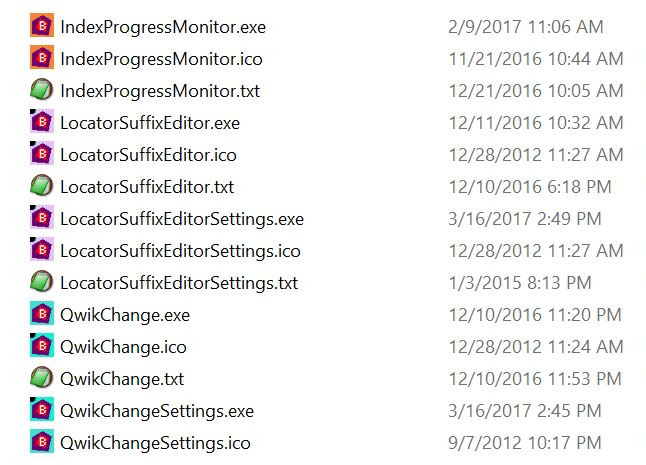
The zipped download folder contains fifteen program files for the Progress Monitor (three files), Qwik Change (six files), and Suffix Editor (six files).

To install the apps, close the Sky program, unzip the folder and copy the program files to the Sky Addins folder here: C:\Program Files (x86)\Common Files\SKY Software\Addins. When you restart Sky, the app links will appear at the bottom of the Utilities and Tools menus.

You may omit the file copy for any of the three apps you don't want to use. They can be added later if you change your mind and want to include them.